PRIME TIME 6V6 TEAM COACH REGISTRATION
Team Registration Overview
Initial Step: Create a new free account if you have never logged in or log in with existing credentials.
Each Team Representative to register their team will be titled “Head Coach”.
Steps for Coaches to Register:
Step 1: Go to the Registration module and select the Program/Division you would like to be a coach for. Click “Register Now” (you can also click “Register Now” when you are signed into your account).
Step 2: Create a new account if you have never logged in or log in with existing credentials.
Step 3: Enter your information and continue.
Step 4: Select “I am a team coach or other team personnel” from the “Which Best Describes You” pop-up.
Step 5: Confirm the correct Program is selected for which you want to register as a coach for.
Step 6: Confirm the correct Division is selected for which you want to register as a coach for.
Step 7: Select yourself to be the Head Coach.
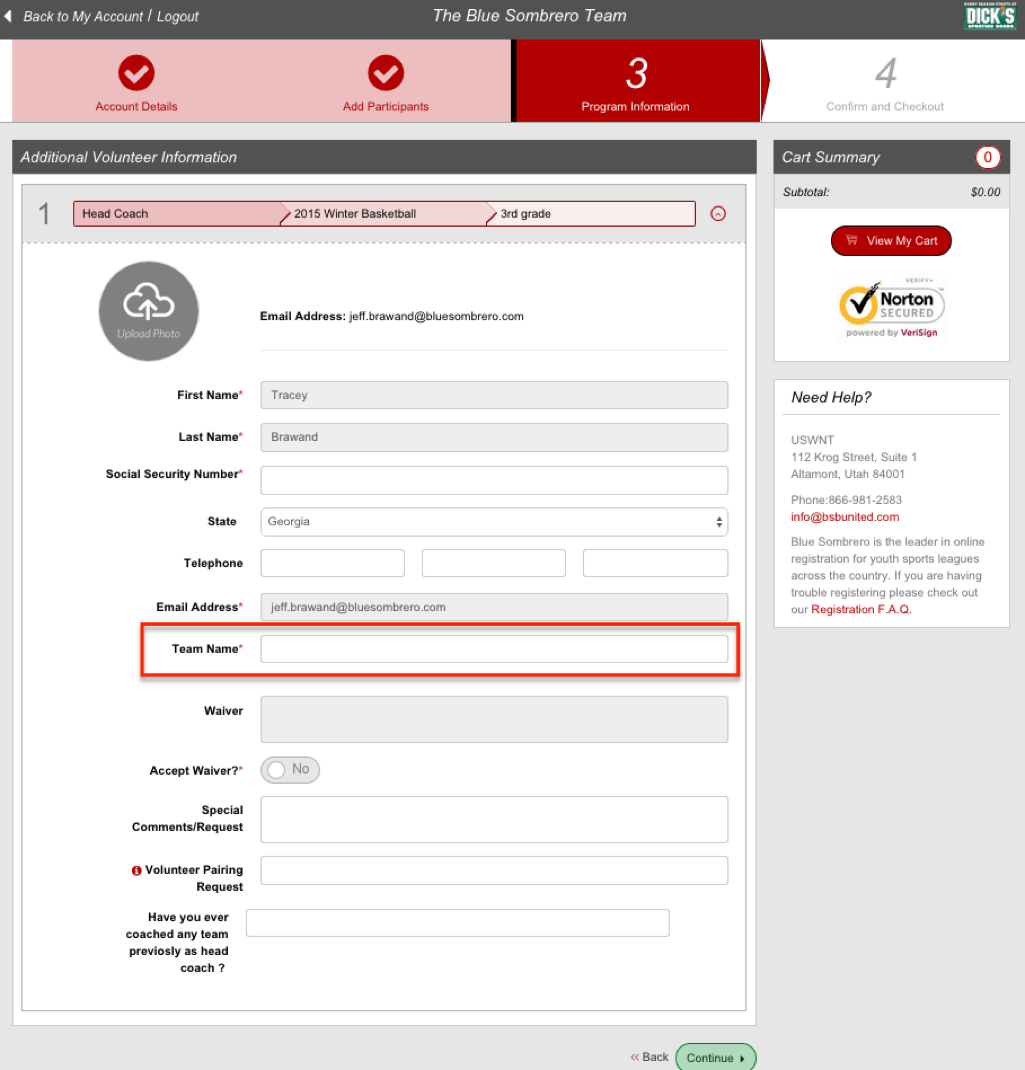
Step 8: Enter your remaining information. This is where you will enter your Team Name.
*If you are also a Participant and will be playing on the team, you have two options to add yourself as a participant.
1. You can select the “check mark” above “Add Participants” to return to the previous screen (see below image) and select “Yes” to the question: Are you also a Participant? And then continue completing the information in each step.
2. Alternatively, you can complete the registration as Head Coach, and then enter your email address along with all your team members’ email addresses, and complete the registration process that way.
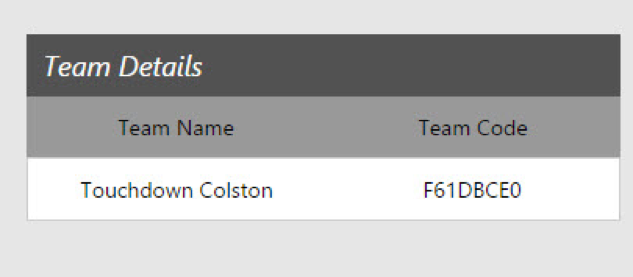
Step 9: Your team page is created! From here you then can invite players to your team by entering their email address. This page also tells you how many players have joined your team and what the minimum and maximum players per team are. PLUS, the team code is on this page too. You can pass this code out to anyone who you would like to join your team. When you enter emails on this page, each email will already include the team code.
Steps for Users With Team Code/Invite to Register:
Step 1: Click on the “Accept Invite” button from your invitation email or go to the Registration listing module and select the Program/Division you would like to register for. Click “Register Now” (you can also click “Register Now” when you are signed into your account). If you received an email invite, simply click on the link in the email.
Step 2: Create a new account if you have never logged in or log in with existing credentials
Step 3: Enter your information and continue
Step 4: Select “I am a parent or guardian registering a participant” from the “Which Best Describes You” pop-up, even if you are registering yourself as a participant.
Step 5: Enter the participant’s information (which may be your own information).
Step 6: Select the Program for which you want to register for (this step will be skipped if you clicked on “Accept Invite” from your invitation email).
Step 7: Confirm the correct Division is selected for which you want to register for.
Step 8: Enter the Team Code (if it isn’t automatically populated) and any additional information required.
Step 9: You’re Registered!
How do I update my team page?
Here is some additional information on the team page functionality: https://bluesombrero.zendesk.com/forums/21118618-Team-Pages
What happens if a player loses their team registration email invite?
Easy! The player just needs to ask the coach for the invite code which can be found on their Manger Roster Invites page! Then the player can simply enter the code during the player registration process to join the team.